A guide to deploying Entra Hybrid Join and rolling out device-based Conditional Access across a large organization.
| Date | Category |
|---|---|
| 2026-03-07 | Engineering Handbook / Identity |
TL;DR — The Deployment at a Glance
If you need the quick version, here’s what we did end to end:
- Understand the environment — Okta-federated, Group Policy–managed, ~1,800 devices, no Intune (yet)
- Configure Okta for WS-Trust — Create a sign-on policy rule allowing the
Windows-AzureAD-Authentication-Provideruser agent through legacy auth - Pilot with GPO registry keys — Push
TenantIdandTenantNameto a scoped OU to test Hybrid Join on a handful of devices - Validate — Confirm
dsregcmd /statusshowsAzureAdJoined: YES,DomainJoined: YES, andAzureAdPrt: YES - Go org-wide with Entra Connect — Run the Hybrid Join wizard (point the SCP at Okta, not Entra ID), scope device OUs, and sync
- Clean up dual-state devices — Remove stale Entra Registered records so Conditional Access evaluates correctly
- Deploy Chrome GPO — Push
CloudAPAuthEnabledregistry key before enforcement - Report-Only CA policy — Monitor for 2+ weeks, identify and remediate failures
- Staged CA enforcement — Pilot group → department by department → full org
- Next step: Intune — Hybrid Join unlocks MDM auto-enrollment with a single GPO, enabling Compliance Policies, Defender for Endpoint, and configuration baselines
This is the story of how we deployed Entra Hybrid Join across a financial institution running Okta federation, joined 1,800+ devices — laptops, desktops, servers — and enforced a Conditional Access policy that blocked access from every personal computer. If you’re planning something similar, especially in an Okta-federated environment, this guide walks you through exactly what we did, what broke, and how we fixed it.
📝 A note on naming: Microsoft has officially renamed Azure Active Directory to Microsoft Entra ID, and Azure AD Connect to Microsoft Entra Connect. This guide uses the current Entra naming throughout. However, you will still encounter the legacy Azure AD terminology everywhere — in the Entra portal (
trustType = Hybrid Azure AD joined), in event logs, in PowerShell outputs (AzureAdJoined), in Okta’s configuration UI, and across Microsoft documentation.
Current Name Legacy Name (Still Appears) Microsoft Entra hybrid joined Hybrid Azure AD joined Microsoft Entra ID Azure Active Directory (Azure AD) Microsoft Entra Connect Azure AD Connect Entra Registered Azure AD Registered Entra joined Azure AD joined Don’t be confused when you see both — they refer to the same thing. Microsoft is still migrating labels across their own tooling.
The Problem: Anyone Could Access Everything from Anywhere
Let me set the scene. We’re a financial institution. Our employees handle sensitive client data, internal financials, and regulated communications daily. Yet any user could open a browser on their personal laptop at home, sign into Microsoft 365, and pull down emails, files, and confidential data — with zero visibility on our end.
No MDM. No endpoint protection. No audit trail. No remote wipe capability. In a regulated environment, that’s not just an IT hygiene issue — it’s a compliance gap.
The goal: prevent access to corporate resources from any device that isn’t company-owned and company-managed. No exceptions.
The solution: leverage what we already had — Entra Connect and M365 licenses — to deploy Entra Hybrid Join across every company device, then enforce a Conditional Access policy requiring it. No Hybrid Joined device? No access. And as a strategic bonus, once every device is Hybrid Joined, enrolling them into Intune for full MDM management becomes a single GPO change — enabling Compliance Policies, Defender for Endpoint, and configuration baselines without touching individual machines.
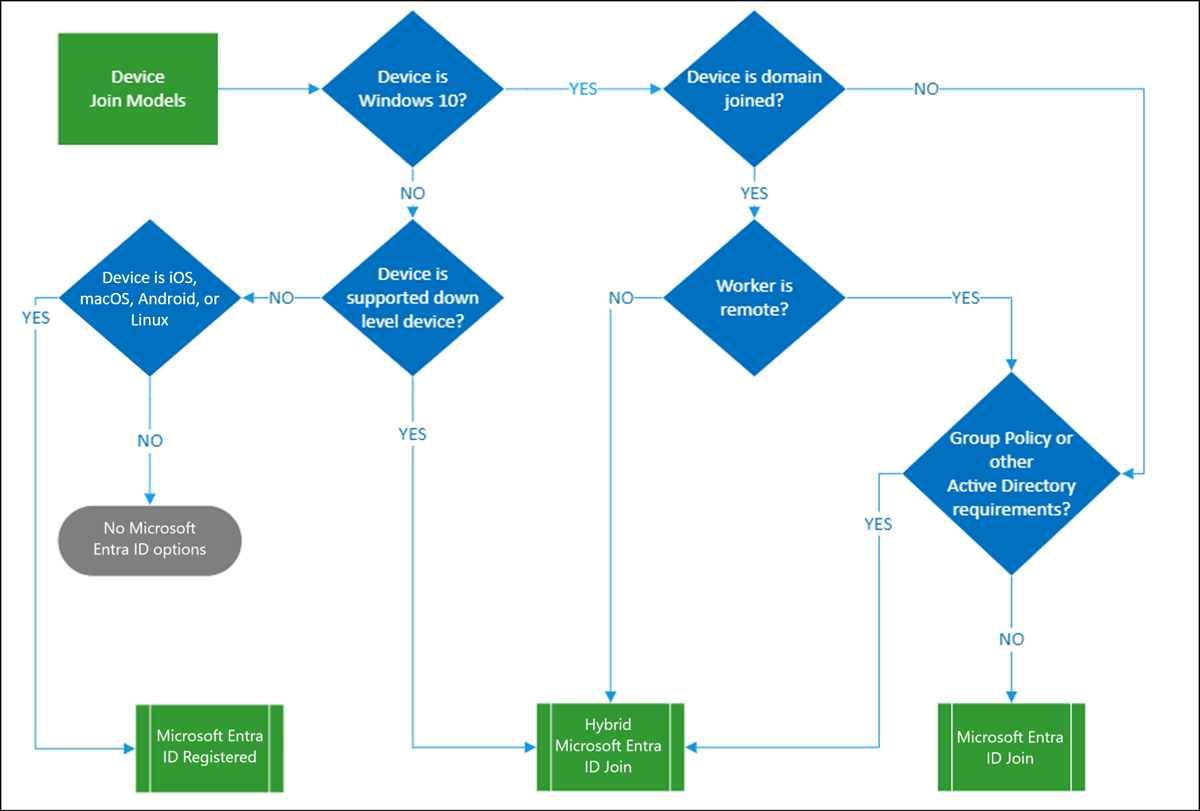 Microsoft’s Device Join Models decision tree — for domain-joined Windows devices managed with Group Policy, Hybrid Entra Join is the right path.
Our Environment
Before diving into the implementation, here’s what made our environment different from a vanilla deployment:
- Identity Provider: Okta (federated with Entra ID)
- Device management: Group Policy (GPO) — no Intune at the time
- Directory sync: Entra Connect (syncing users and groups, but not yet devices)
- Device fleet: ~1,800 machines — laptops, desktops, VDIs, and servers
- Target state: Every company device Hybrid Joined → Conditional Access enforced → personal devices blocked
The Okta federation piece is what makes this deployment distinct from the majority of guides out there. If you’re running Okta, pay close attention — the gotchas are subtle and the failures are silent.
How Devices Discover Your Tenant
Before touching any configuration, you need to understand the single most important concept in this entire deployment: how devices discover your Entra tenant. This determines your deployment path, your rollout strategy, and how you troubleshoot failures.
📝 Note: Beyond tenant discovery, devices and their OUs must also be properly scoped in Entra Connect for syncing. If a device’s OU is not selected in the sync configuration, the device will never appear in Entra ID — regardless of SCP configuration.
Devices find your tenant through a Service Connection Point (SCP). The SCP tells the device: “Here’s the tenant ID, here’s where to authenticate.” There are two delivery methods:
| Approach | How It Works | When to Use It |
|---|---|---|
| GPO Registry Keys | Push TenantId and TenantName to a scoped OU via Group Policy |
Targeted pilot — limits blast radius |
| Entra Connect Wizard | Writes the SCP directly into Active Directory (CN=Device Registration Configuration) |
Full org rollout — all domain-joined machines discover the tenant natively |
💡 Lookup priority: When a device finds a registry-based SCP, it uses that directly. Only if no registry SCP exists does Windows fall back to querying the directory-level SCP in AD. This is why you can pilot safely with GPO registry keys even after an AD-level SCP is written.
Okta Federation: The Part Most Guides Miss
This section is front and center because this is where most Okta-federated deployments fail silently.
Point the SCP at Okta, Not Entra ID
Okta’s official guidance:
“During Service Connection Point (SCP) configuration, set the Authentication Service to the Okta org you have federated with your registered Microsoft 365 domain.”
When running the Entra Connect Hybrid Join wizard, on the SCP configuration page, explicitly select your Okta org as the Authentication Service — not Microsoft Entra ID.
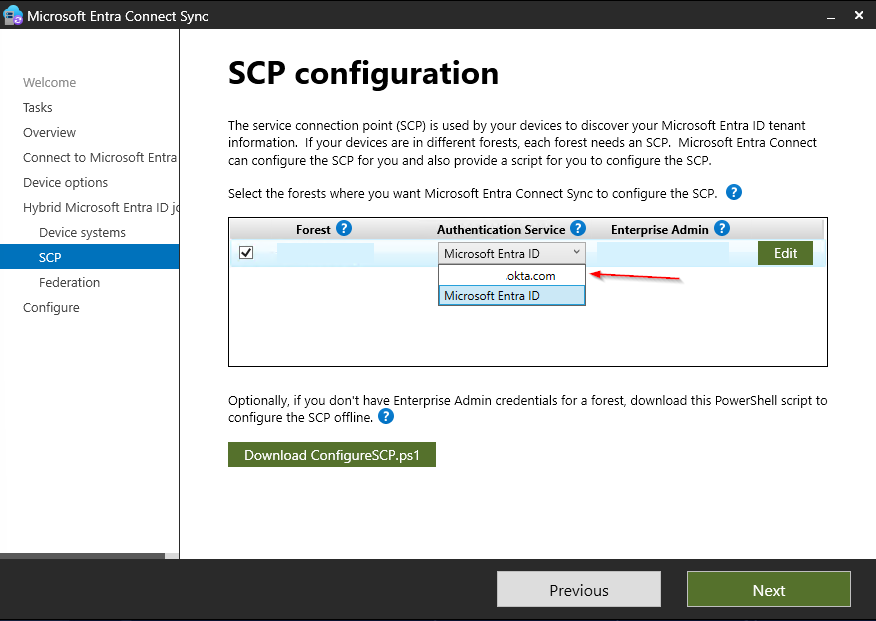 The Authentication Service dropdown during SCP setup — always select the Okta org, not Microsoft Entra ID, in a federated environment. Getting this wrong means devices can’t authenticate through the federation trust, and the join will fail silently.
If you set the Authentication Service to Entra ID in a federated environment, you will get no error. The SCP writes successfully, the device attempts to join, and it fails silently because it can’t authenticate through the federation trust. You’ll spend hours reviewing event logs before circling back to this dropdown.
Configure Okta’s Sign-On Policy for WS-Trust
For the Primary Refresh Token (PRT) to flow correctly to Hybrid Joined devices, WS-Trust must be enabled in Okta’s sign-on policies. However, enabling legacy auth broadly is a security risk — it bypasses MFA and is vulnerable to password spray attacks.
The correct approach: allowlist only the Windows device registration user agent so that only genuine Hybrid Join flows can use legacy auth.
In Okta, create an App-Level Sign-On Policy rule for your Office 365 application with:
- Client type:
Exchange ActiveSync/Legacy Auth - Custom expression:
request.userAgent.contains("Windows-AzureAD-Authentication-Provider") - Action: Allow (without MFA — device registration cannot perform MFA)
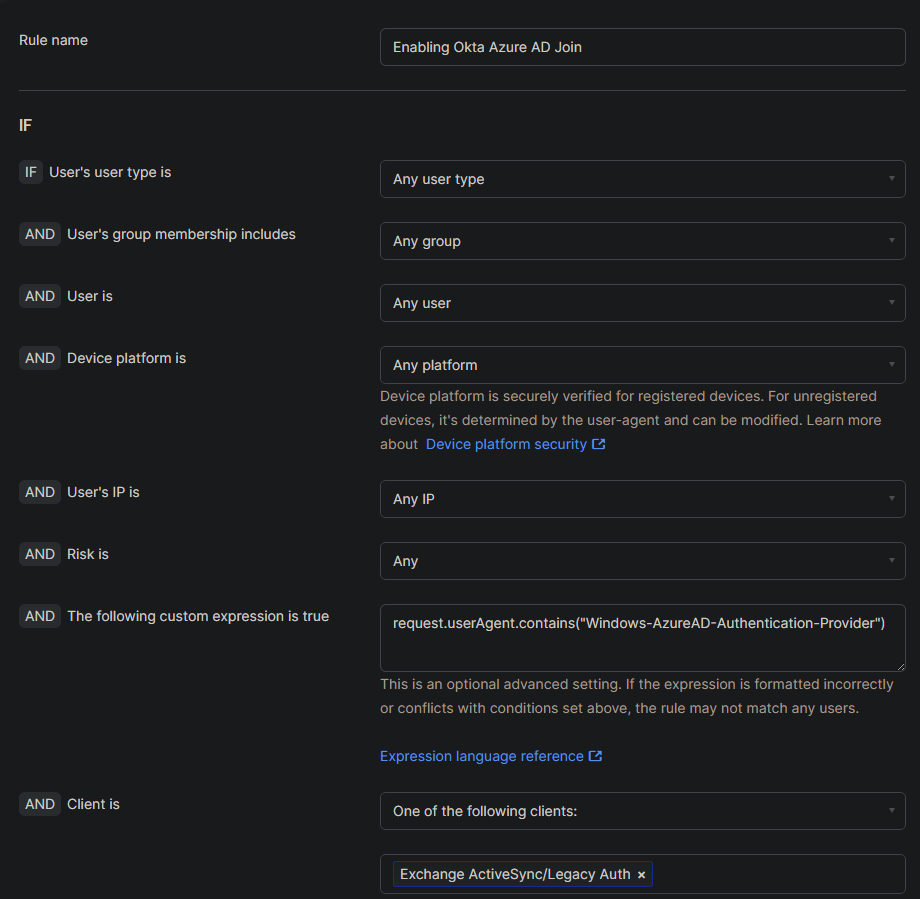 Our Okta sign-on policy rule — the custom expression ensures only genuine device registration flows can use legacy auth. Everything else is blocked.
This is the most surgical way to enable WS-Trust for Hybrid Join without opening legacy auth to the entire organization.
How the Federated Join Actually Works
Understanding this flow is essential for troubleshooting. In a federated environment, the join is a multi-step process with an expected failure built in:
- Device reads the SCP (registry or AD) → discovers tenant and Okta federation endpoint
- Device contacts Okta’s STS via WS-Trust to authenticate
- First attempt typically fails → device falls back to a synchronized join
- On failure, device writes a self-signed certificate to its
userCertificateAD attribute - On the next Entra Connect sync cycle (default: 30 min), the computer object with the cert syncs to Entra ID → device appears as joined but pending registration
- The Windows scheduled task
Automatic-Device-Joinretries the join - Since the object now exists in Entra ID → join and registration succeeds, PRT is issued
📝 Key insight: The “first attempt fails” behavior is expected in federated environments. Don’t panic when you see initial errors — the synchronized join fallback is by design. The timeline from SCP delivery to successful join can be 30–90 minutes depending on your sync cycle and task scheduler timing.
Okta Troubleshooting: WS-Trust Errors
If WS-Trust is not correctly configured in Okta, Event Viewer will show errors like:
Logon Failure. Status: 0xC00484C1

Error: 0xCAA90056 Renew token by the primary refresh token failed.
Logged at RefreshTokenRequest.cpp, line: 148, method: RefreshTokenRequest::AcquireToken.

AAD Cloud AP plugin call GenericCallPkg returned error: 0xC0048512
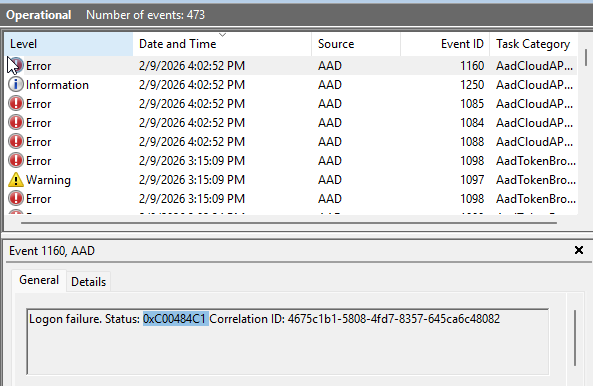 AAD Operational Event Viewer when WS-Trust is misconfigured — logon failures and AadTokenBroker errors flood the log.
💡 Quick PRT check: If you suspect the PRT is not passing correctly, run
dsregcmd /statusand checkAzureAdPrtunder SSO State. If it showsAzureAdPrt : NO, the PRT is not being acquired — the device cannot pass its Hybrid Join state to Conditional Access. This is often the fastest way to confirm a WS-Trust or federation issue before diving into Event Viewer.

dsregcmd /status—AzureAdPrt : NOconfirms the device has no valid Primary Refresh Token.
Common culprits:
- WS-Trust legacy auth not enabled for the relevant sign-on policy in Okta (or the user agent expression is wrong)
- A network proxy modifying the WS-Trust SOAP response in transit — even if WS-Trust is enabled, a proxy mangling the XML body will break everything downstream silently
- The Okta sign-on policy rule is ordered below a deny rule that catches legacy auth first
Phase 1: Targeted Pilot
Do not start with a full org rollout. Start with a targeted pilot scoped to a single OU with a handful of devices. The blast radius of a misconfigured SCP is the entire domain.
Step 1: Clear Any Existing SCP
If Entra Connect has ever written an SCP to AD previously (from a test, a previous attempt, etc.), remove it via ADSI Edit:
- Open ADSI Edit → Connect to the
Configurationnaming context - Navigate to:
CN=Services → CN=Device Registration Configuration - Delete the
azureADIdandazureADNamekeyword values from the leaf object
Step 2: Deploy the GPO Registry Keys
Create a GPO linked to your pilot OU with two registry items under Computer Configuration → Preferences → Windows Settings → Registry:
| Setting | Value |
|---|---|
| Key Path | HKLM\SOFTWARE\Microsoft\Windows\CurrentVersion\CDJ\AAD |
| TenantId | Your Entra Tenant GUID |
| TenantName | Your verified domain (e.g., yourdomain.com or your .onmicrosoft.com domain) |
📝 Note: For the registry-based pilot, the
TenantNamecan be either your verified federated domain or your.onmicrosoft.comdomain — both work. The critical Okta-specific requirement (pointing the Authentication Service at Okta) applies when configuring the SCP through the Entra Connect wizard in Phase 2.
For a quick proof-of-concept on a single machine, set these registry keys locally via an elevated PowerShell session:
# ── SCP Registry Keys for POC Testing ──────────────────────────────────────
# Run in an elevated (Admin) PowerShell session.
# Replace the placeholder values with your actual Tenant ID and domain.
# ────────────────────────────────────────────────────────────────────────────

$tenantId = "<your-tenant-guid>"
$tenantName = "<your-tenant-domain>"

# Create the registry path if it doesn't exist
$regPath = "HKLM:\SOFTWARE\Microsoft\Windows\CurrentVersion\CDJ\AAD"
if (-not (Test-Path $regPath)) {
    New-Item -Path $regPath -Force | Out-Null
}

# Set the tenant ID and name
Set-ItemProperty -Path $regPath -Name "TenantId" -Value $tenantId -Type String
Set-ItemProperty -Path $regPath -Name "TenantName" -Value $tenantName -Type String

Write-Host "Registry SCP configured successfully!" -ForegroundColor Green
Write-Host "TenantId: $tenantId" -ForegroundColor Cyan
Write-Host "TenantName: $tenantName" -ForegroundColor Cyan
Step 3: Validate on Pilot Devices
Verify the registry keys landed:
Get-ItemProperty -Path "HKLM:\SOFTWARE\Microsoft\Windows\CurrentVersion\CDJ\AAD"
Then check the join status:
dsregcmd /status
You’re looking for AzureAdJoined : YES and DomainJoined : YES under Device State:
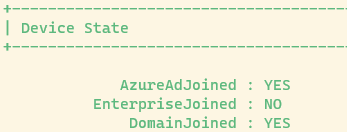 A successful
 dsregcmd /status — the device is both domain-joined and Entra Hybrid Joined.
Verify PRT acquisition:
dsregcmd /status | Where-Object { $_ -match 'AzureAdPrt' }
AzureAdPrt : YES means the device has a valid Primary Refresh Token and is fully functional:
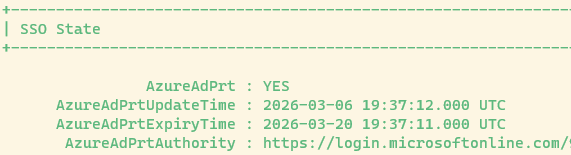 SSO State showing
 AzureAdPrt : YES with valid update and expiry timestamps — the PRT is active and the device can pass its identity to Conditional Access.
If AzureAdPrt shows NO, the device is joined but cannot authenticate to cloud resources via SSO. See the Okta WS-Trust troubleshooting section and Obstacle 4 below.
If the device has not yet joined, dsregcmd /status will show:
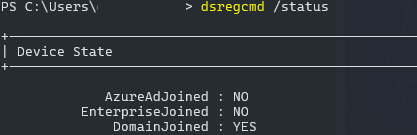 A device that is domain-joined but has not yet completed Entra Hybrid Join —
 AzureAdJoined : NO.
Phase 2: Full Org Rollout
Once the pilot validated the process and devices were joining cleanly, it was time to go org-wide.
Run the Entra Connect Hybrid Join Wizard
- Open Microsoft Entra Connect Sync on your Entra Connect server
- Navigate to Device options
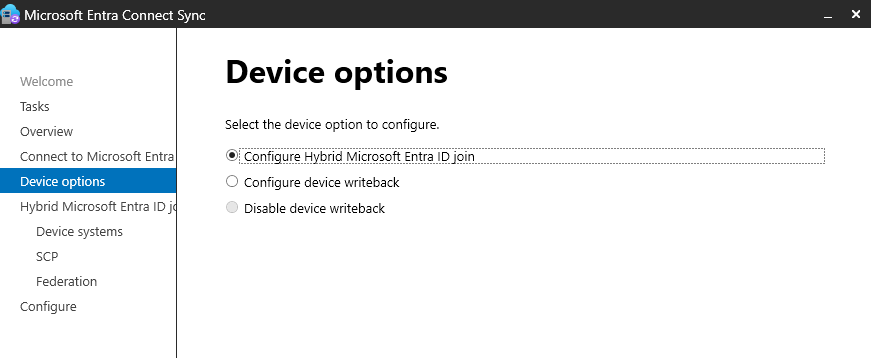 The Device options page — select “Configure Hybrid Microsoft Entra ID join.”
📝 Note: You do not need to enable Device writeback for Hybrid Join. Device writeback is a separate feature used for Conditional Access with AD FS on-premises claims — it is not required for the Hybrid Join flow or for Entra ID Conditional Access policies.
- Select Configure Hybrid Microsoft Entra ID join — the wizard will load the setup screen:
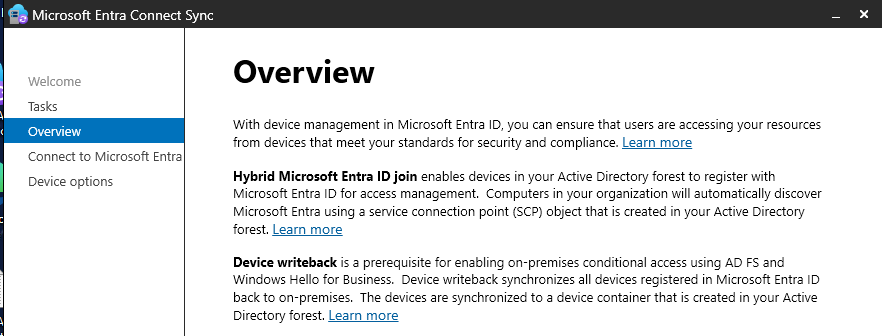 The Hybrid Join setup screen after selecting the option.
- On the SCP configuration page: select your forest, and for Authentication Service, select your Okta org (if federated). Non-federated environments should select Microsoft Entra ID here.
- Enter Enterprise Admin credentials and complete the wizard
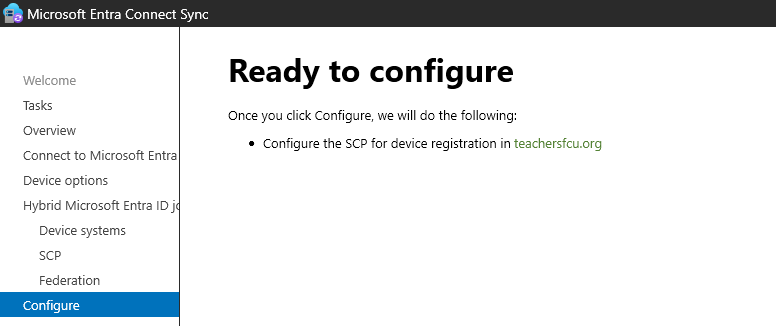 “Ready to configure” — Entra Connect will write the SCP for device registration into your AD forest.
Verify the SCP in AD
After the wizard completes, confirm the SCP via ADSI Edit:
ADSI Edit → Configuration → CN=Services → CN=Device Registration Configuration
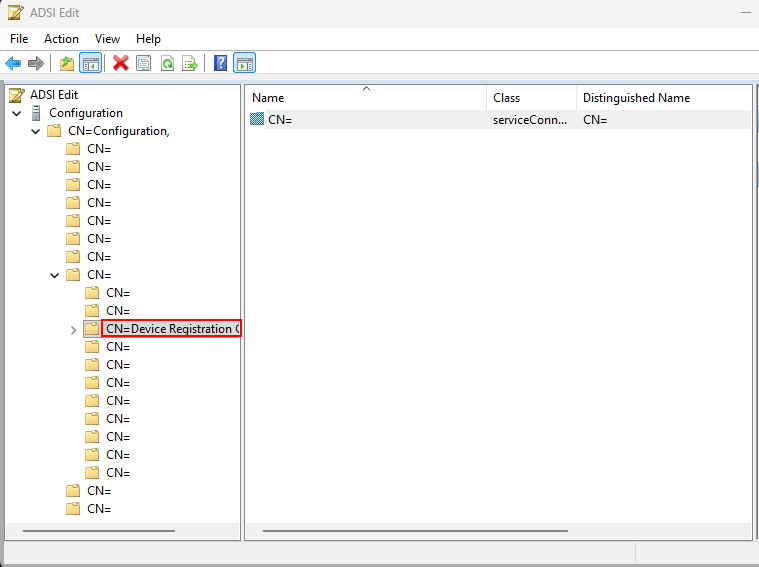 The
The keywords attribute should contain your azureADId (Tenant GUID) and azureADName (primary federated domain URL).
Configure Entra Connect to Sync Devices
Before devices can Hybrid Join, Entra Connect needs to know which OUs contain your computer objects. If Entra Connect was only syncing users and groups, your device OUs won’t be in scope yet.
Step 1: Verify OU filtering includes your device OUs
In Entra Connect → Sync → Domain/OU Filtering, confirm the OUs containing your computer objects are selected.
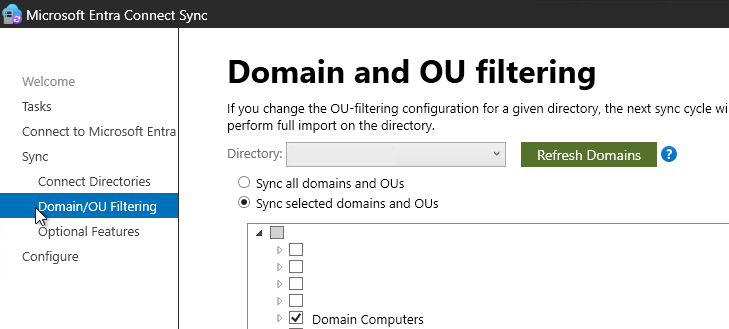 Make sure the OUs containing your workstations, laptops, and servers are selected. If they’re not checked, those devices will never sync to Entra ID.
Step 2: Verify the Computer Join sync rule
Open the Synchronization Rules Editor. Look for the In from AD - Computer Join rule — this syncs computer objects from AD to Entra ID. You may need to clone this rule.
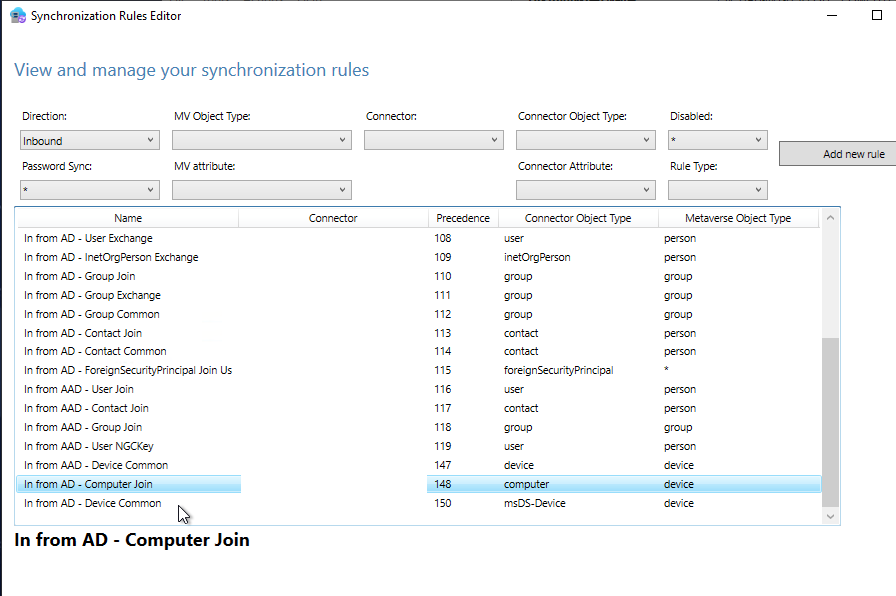 The
The In from AD - Computer Join rule must exist and be active.
To scope the sync rule to specific OUs, duplicate the rule and add a scoping filter using the dn attribute with ENDSWITH:
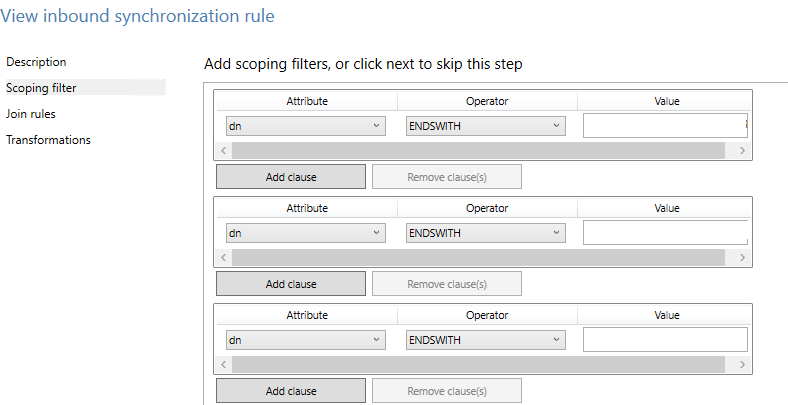 Using
Using dn ENDSWITH to limit which OUs get synced — roll out progressively: workstation OUs first, then VDIs, then servers.
Expand Scope Progressively
With the SCP written and sync rules configured, we expanded scope in stages:
- Workstation OUs — laptops and shared desktops
- VDI infrastructure — session-based machines
- Server OUs — in a separate, deliberate phase
Every domain-joined machine added to the sync scope begins attempting Hybrid Join silently on the next sync cycle.
Verifying Devices Are Syncing
# On the Entra Connect server — force a sync cycle
Start-ADSyncSyncCycle -PolicyType Delta

# On a client device — check join status
dsregcmd /status

# On a client device — check PRT acquisition. PRT will not display properly if using admin Powershell
dsregcmd /status | Where-Object { $_ -match 'AzureAdPrt' }
Devices initially appear in Entra ID with Registered: Pending — this is normal. They transition to fully registered once an interactive user login triggers the Automatic-Device-Join scheduled task.
Dealing with Pending Devices
After the initial sync, expect a large number of devices in a Pending state. This is normal and typically resolves on its own.
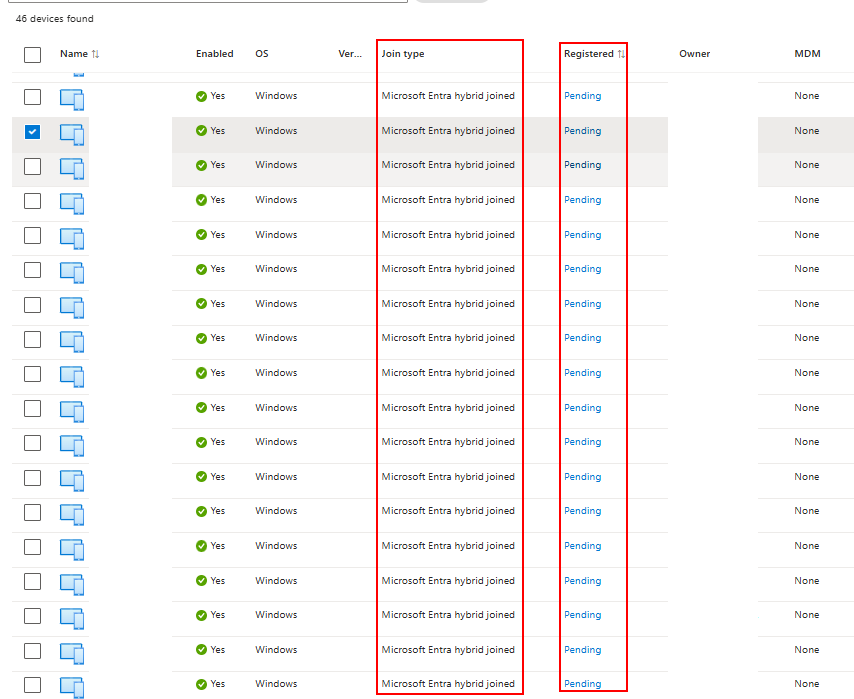
Join type: Microsoft Entra hybrid joined, Registered: Pending — synced but waiting for the user to log in.
Why devices stay pending:
- Device is powered off or hasn’t been used recently
- User is on leave and the machine is idle
- Shared desktop or conference room PC with no regular interactive logins
- Remote device without line-of-sight to a Domain Controller
For devices that remain stuck, deploy a startup GPO script:
# Option 1: Startup script via GPO (Computer Configuration → Scripts → Startup)
dsregcmd /join

# Option 2: Trigger the scheduled task directly
schtasks /run /tn "\Microsoft\Windows\Workplace Join\Automatic-Device-Join"
Bottlenecks We Hit
| Bottleneck | Root Cause | Resolution |
|---|---|---|
| Desktops with no regular logins | Automatic-Device-Join only fires on interactive login |
Startup script: dsregcmd /join |
| VDIs | Session-based logins don’t always trigger the task | Startup script + scheduled GPO task |
| Servers | Not in initial Entra Connect sync scope | Expanded sync rule scope in a separate phase |
| Inventory gaps | Unknown devices not in sync scope | AD-to-Entra device comparison before CA enforcement |
Dual-State Cleanup
This was a significant issue. Most of our devices were already Entra Registered before we started — users had previously signed into Windows with their work account or configured Windows Hello, which automatically registered the device.
When a device is in a dual state — both Entra Registered and Entra Hybrid Joined — Conditional Access can evaluate against the Entra Registered record. Since Entra Registered devices don’t satisfy a “Require Hybrid Joined device” policy, the user gets blocked even though their device is legitimately Hybrid Joined.
Good news: Hybrid Join automatically cleans up the Entra Registered state as part of the join completion. In our experience, ~95% of dual-state devices resolved within hours to a couple of days without intervention.
For the remaining ~5%, manually remove the stale record:
- In Entra ID → Devices, search for the device
- You’ll see two entries —
Microsoft Entra registeredandMicrosoft Entra hybrid joined - Delete the Entra Registered entry (keep the Hybrid Joined one)
- Have the user sign out and back in to refresh their token
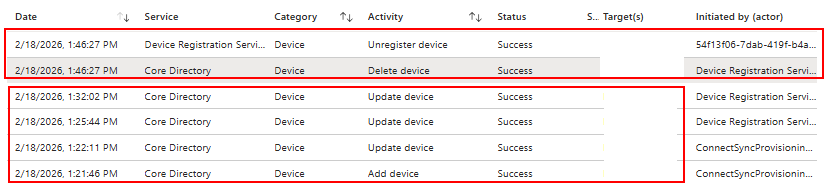 Audit log showing the automatic lifecycle:
 Add device and Update device from ConnectSync, followed by Unregister device and Delete device for the old Entra Registered record.
To confirm cleanup, check sign-in logs for trustType = Hybrid Azure AD joined. If you still see Azure AD registered sign-ins for a device that should be Hybrid Joined, clean it up before adding that user to CA scope.
Phase 3: Conditional Access Enforcement
This is where everything comes together — and where you can lock out your entire org if you’re not careful. We approached this in three stages: Report-Only → Pilot Group → Full Enforcement.
Monitoring Sign-In Trends Before Enforcement
Before creating the CA policy, we used KQL queries in Entra sign-in logs to confirm Hybrid Joined sign-ins were trending upward across the org.
Query 1 — All sign-ins from Hybrid Joined devices (track overall adoption):
SigninLogs
| where TimeGenerated > ago(30d)
| where DeviceDetail.trustType == "Hybrid Azure AD joined"
| extend
    DeviceName       = tostring(DeviceDetail.displayName),
    DeviceId         = tostring(DeviceDetail.deviceId),
    TrustType        = tostring(DeviceDetail.trustType),
    IsCompliant      = tostring(DeviceDetail.isCompliant),
    OperatingSystem  = tostring(DeviceDetail.operatingSystem),
    Browser          = tostring(DeviceDetail.browser)
| project
    TimeGenerated, UserPrincipalName, TrustType, DeviceName,
    DeviceId, IsCompliant, OperatingSystem, Browser,
    AppDisplayName, ResultType, ResultDescription, IPAddress, Location
| sort by TimeGenerated desc
Query 2 — Per-user device trust type detail (verify individual users before enforcement):
SigninLogs
| where ResultType == 0
// | where UserPrincipalName == "user@yourdomain.com"  // Uncomment to filter
| extend TrustType = tostring(DeviceDetail.trustType)
| extend DeviceName = tostring(DeviceDetail.displayName)
| extend IsCompliant = tostring(DeviceDetail.isCompliant)
| summarize
    LastSeen = max(TimeGenerated),
    SignInCount = count()
    by UserPrincipalName, DeviceName, TrustType, IsCompliant
| sort by UserPrincipalName asc, LastSeen desc
Query 3 — Detect remaining Entra Registered sign-ins (find users who need remediation):
SigninLogs
| where TimeGenerated > ago(30d)
| where DeviceDetail.trustType == "Azure AD registered"
| extend
    DeviceName       = tostring(DeviceDetail.displayName),
    DeviceId         = tostring(DeviceDetail.deviceId),
    TrustType        = tostring(DeviceDetail.trustType),
    IsCompliant      = tostring(DeviceDetail.isCompliant),
    OperatingSystem  = tostring(DeviceDetail.operatingSystem),
    Browser          = tostring(DeviceDetail.browser)
| project
    TimeGenerated, UserPrincipalName, TrustType, DeviceName,
    DeviceId, IsCompliant, OperatingSystem, Browser,
    AppDisplayName, ResultType, ResultDescription, IPAddress, Location
| sort by TimeGenerated desc
Run all three queries in parallel as ongoing monitoring tools. Watch the Hybrid Joined count climb while the Entra Registered count drops. When the vast majority of sign-ins come from Hybrid Joined devices, you’re ready for Report-Only.
Stage 1: Report-Only Mode
Deploy a Report-Only CA policy applied to all users. Report-Only evaluates every sign-in and logs what would have happened — without blocking anyone.
Do not skip this step.
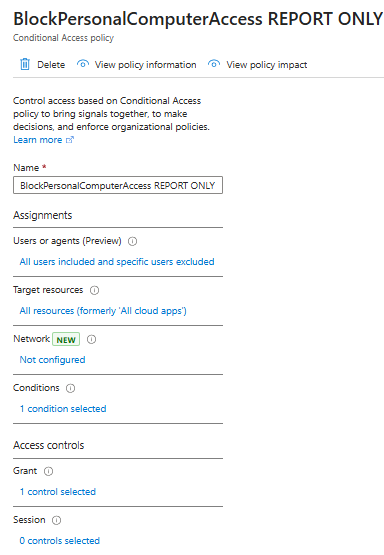 Our Report-Only policy — applied to all users and all resources.
The impact summary gave us a clear picture of readiness:
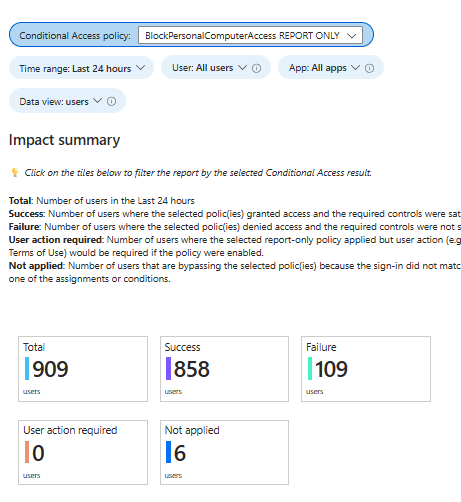 909 total users evaluated, 858 would have passed, 109 would have been blocked over a 24-hour period. Those 109 failures became our remediation list.
Drill into individual users via Entra ID → Sign-in logs → Report-only tab:
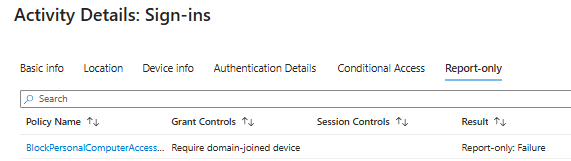 Per-user evaluation showing
 Report-only: Failure for the Hybrid Join requirement.
Here’s what a CA failure looks like in the sign-in logs:
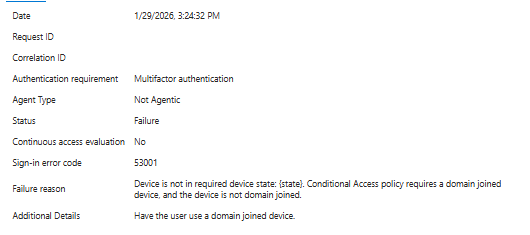
Sign-in error code: 53001, Device is not in required device state.
Those 109 failures became our remediation list — devices not yet Hybrid Joined, personal devices, or dual-state issues. We also discovered multiple cases of users accessing corporate resources from personal devices, particularly offshore teams. This discovery phase alone justified enforcement.
The Chrome Problem
When we first deployed Report-Only, ~70% of sign-ins were flagging as failures:
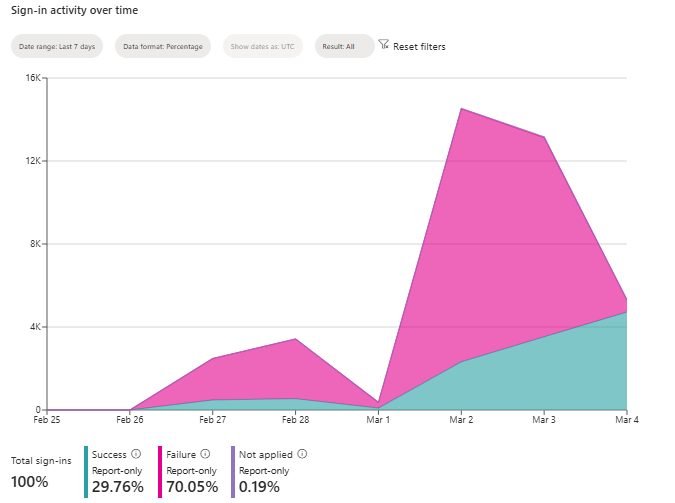 70% failure rate. This would have been catastrophic if enforced as-is.
The culprit: Chrome doesn’t natively broker PRT tokens the way Edge does. Every user signing in via Chrome was flagging as a failure.
We deployed the fix via GPO:
Path:  HKEY_LOCAL_MACHINE\Software\Policies\Google\Chrome
Name:  CloudAPAuthEnabled
Type:  DWORD
Value: 0x00000001
After propagation, failures dropped from 70% to 8% and continued falling:
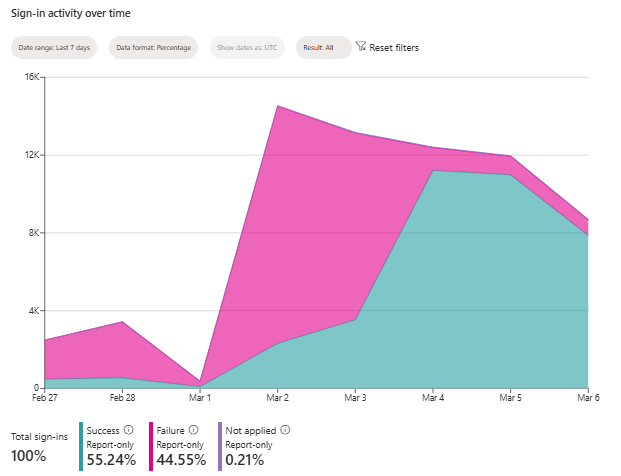 Success climbing as machines picked up the
 CloudAPAuthEnabled registry key.
⚠️ Deploy the Chrome GPO before CA enforcement. If you enforce the CA policy before this registry key is deployed, every Chrome user gets blocked on day one.
Verify on a device:
Get-ItemProperty -Path "HKLM:\Software\Policies\Google\Chrome" -Name "CloudAPAuthEnabled"
Pre-Enforcement Due Diligence
For each user and department being added to enforcement scope, we verified:
| Check | How to Verify | Why It Matters |
|---|---|---|
| Device is Hybrid Joined | dsregcmd /status → AzureAdJoined: YES + DomainJoined: YES |
If not joined, user gets blocked |
| Sign-in logs show correct trust type | Entra sign-in logs → trustType = Hybrid Azure AD joined |
Confirms CA will evaluate correctly |
| Report-Only shows success | Sign-in log → Report-only tab → Success |
Proves the policy would pass |
| Dual state is cleaned up | Only Hybrid Joined record exists in Entra | Prevents CA evaluation against stale record |
| Chrome GPO deployed | CloudAPAuthEnabled = 1 on device |
Chrome users won’t be blocked |
| PRT is valid | dsregcmd /status → AzureAdPrt: YES |
Device can pass token to CA |
We treated this as a formal checkpoint for every wave. No user was added without sign-off on these checks.
Stage 2: Pilot Group Enforcement
Once Report-Only showed acceptable numbers, we created the real enforcement policy, scoped initially to the IT team. Our grant controls require “Require Microsoft Entra hybrid joined device” — and we’ve also added “Require device to be marked as compliant” as we’re currently piloting Intune enrollment. Stay tuned for that one — no pun intended.
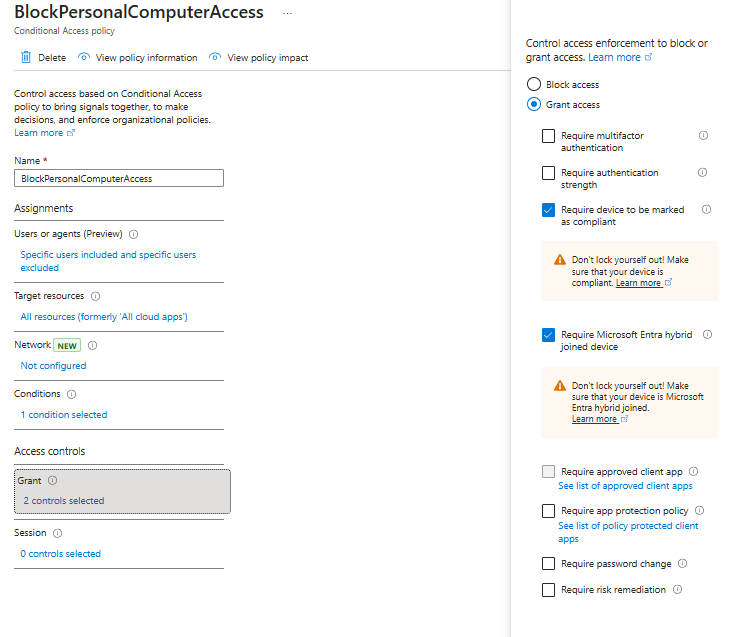 The enforced policy — Grant access requires “Require Microsoft Entra hybrid joined device.”
We monitored for 48 hours, confirmed no unexpected blocks, then expanded department by department.
Stage 3: Full Org Enforcement
After validating with the pilot group and resolving edge cases, we rolled the CA policy out to the entire organization. The Report-Only policy remained active alongside the enforced one for continued monitoring.
🔑 Break-glass accounts: Before going org-wide, ensure you have at least two emergency access (break-glass) accounts excluded from all Conditional Access policies. These are cloud-only accounts with long, complex passwords stored securely offline. If something goes catastrophically wrong with CA, these accounts are your only way back in. Microsoft strongly recommends this.
Don’t Forget Mobile
An org-wide CA policy requiring Hybrid Joined devices will also block phones — and phones can’t be Hybrid Joined. Exclude iOS and Android platforms from the policy.
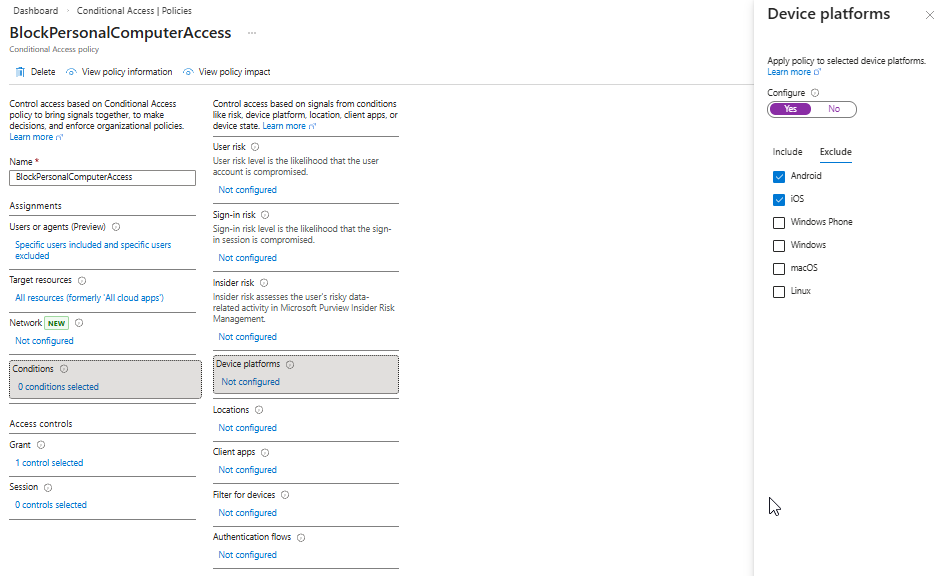 Excluding Android and iOS keeps mobile access intact while the restriction applies to Windows.
What a Blocked Personal Device Looks Like
Once enforcement was live, users attempting to access corporate resources from a non-Hybrid-Joined device see:
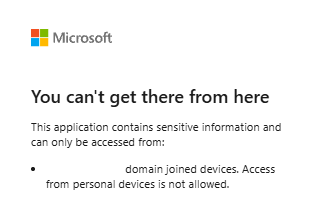 “You can’t get there from here. This application contains sensitive information and can only be accessed from domain joined devices.”
On the admin side:
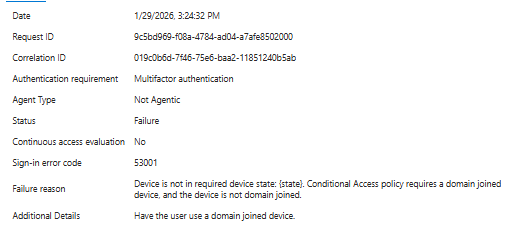
Failure reason: Device policy contains unsupported required device state. This is exactly what you want to see.
Obstacles We Hit (and How We Fixed Them)
Obstacle 1: Device Not Found (0x801c03f3)
This was the most common obstacle during the rollout. On devices that don’t appear as joined or attempting to join in Entra ID, dsregcmd /status shows:
Automatic registration failed at join phase.
    Exit code: Unknown HResult Error code: 0x801c03f3
    Server error: The device object by the given id (...) is not found.
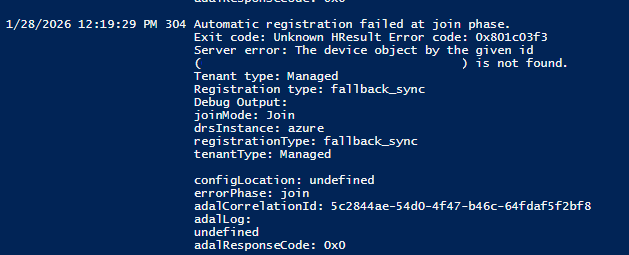 The
The 0x801c03f3 error during join phase — the device is attempting to register, but Entra ID cannot find a corresponding device object.
Before the join attempt, dsregcmd /status will show the device is not Entra joined at all:
Device State showing AzureAdJoined : NO — the device is domain-joined but has never completed Entra Hybrid Join.
Root cause: The device object does not exist in Entra ID. This is almost always because the device’s OU is not in scope for Entra Connect syncing. Other causes include:
- The Entra Connect sync cycle hasn’t run since the device was added to a scoped OU
- A previous device object was manually deleted from Entra ID without clearing the local device state
Resolution: Ensure the device is being synced by Entra Connect. Refer back to the Configure Entra Connect to Sync Devices section above and verify:
- The device’s OU is selected in Entra Connect → Domain/OU Filtering
- The
In from AD - Computer Joinsync rule is active and scoped to include the device’s OU - Run a delta sync:
Start-ADSyncSyncCycle -PolicyType Delta - On the device:
dsregcmd /debug /leave→ restart the machine - Let the
Automatic-Device-Jointask retry, or trigger manually:schtasks /run /tn "\Microsoft\Windows\Workplace Join\Automatic-Device-Join" - Verify:
dsregcmd /status→AzureAdJoined : YES+AzureAdPrt : YES
Obstacle 2: Stale Local Device Cache
One device showed AzureAdJoined : YES in dsregcmd /status but:
DeviceAuthStatus : FAILED. Device is either disabled or deleted.
The local cache believed it was joined, but the Entra object was gone.
Resolution:
Enter-PSSession -ComputerName COMPUTER-NAME

# Clear the cached state, then trigger re-join
dsregcmd /debug /leave
dsregcmd /debug /join
Obstacle 3: Chrome Blocked After CA Enforcement
After enforcing the Conditional Access policy, users on Edge and the desktop M365 apps were able to authenticate without issue — but users on Chrome were blocked. Edge natively brokers the PRT token to Conditional Access, but Chrome does not without additional configuration.
Resolution: Deploy the CloudAPAuthEnabled registry key via GPO. This enables Chrome to pass the device’s PRT to Conditional Access:
Path:  HKEY_LOCAL_MACHINE\Software\Policies\Google\Chrome
Name:  CloudAPAuthEnabled
Type:  DWORD
Value: 0x00000001
Force a policy update and verify:
gpupdate /force
Get-ItemProperty -Path "HKLM:\Software\Policies\Google\Chrome" -Name "CloudAPAuthEnabled"
Obstacle 4: Stale Certificates (0x801c03f3)
This shares the same error code as Obstacle 1, but the root cause is different. We encountered this on one or two targeted pilot devices — it’s not a widespread issue, but worth knowing about.
Client ErrorCode    : 0x801c03f3
Server ErrorSubCode : error_missing_device
Server Message      : The device object by the given id (...) is not found.
When you see 0x801c03f3 and you’ve already confirmed the device’s OU is in scope for Entra Connect syncing (i.e., Obstacle 1 doesn’t apply), the issue is likely a stale userCertificate attribute on the AD computer object from a previous failed registration attempt. The device thinks it’s already registered, but the Entra object is gone or disabled.
# Check for a stale cert
$comp = Get-ADComputer "COMPUTER-NAME" -Properties userCertificate
if ($comp.userCertificate.Count -gt 0) {
    Write-Host "⚠️ Stale userCertificate found. Count: $($comp.userCertificate.Count)" -ForegroundColor Red
} else {
    Write-Host "✅ Clean." -ForegroundColor Green
}

# Clear it
Set-ADComputer "COMPUTER-NAME" -Clear userCertificate
Full resolution sequence:
- Clear the
userCertificateattribute (above) - Delete the existing device object in Entra ID
- Run a full Entra Connect sync
- On the client:
dsregcmd /debug /leave→ restart - Let
Automatic-Device-Joinscheduled task run (or trigger it manually) - Verify:
dsregcmd /status→AzureAdJoined : YES+DomainJoined : YES✅
💡 Pro tip: If you’re seeing a lot of stale certs, audit them in bulk:
Get-ADComputer -Filter * -Properties userCertificate |
    Where-Object { $_.userCertificate.Count -gt 0 } |
    Select-Object Name, @{N='CertCount';E={$_.userCertificate.Count}}
Obstacle 5: PRT Failure in Okta-Federated Environments (0xc00484c1)
If you’re running Okta federation with Microsoft 365 and the Okta sign-on policy is not correctly configured for WS-Trust, the Primary Refresh Token will not pass from Okta to Microsoft successfully. The device may appear Hybrid Joined, but SSO and Conditional Access will fail because there is no valid PRT.
dsregcmd /status will show:
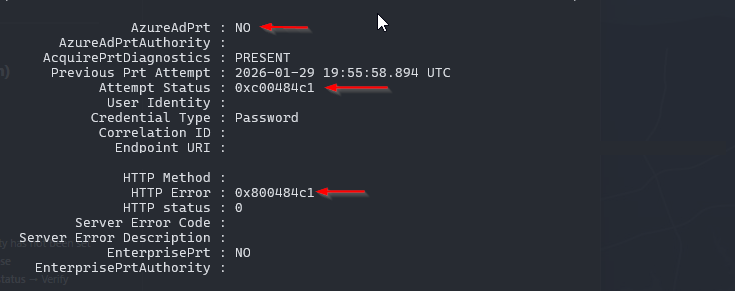 SSO State showing PRT acquisition failure —
 AzureAdPrt : NO, Attempt Status: 0xc00484c1, HTTP Error: 0x800484c1. The device cannot acquire a PRT because the WS-Trust authentication flow is failing.
Root cause: Okta’s sign-on policy for the Office 365 application is not allowing the legacy authentication request from the Windows device registration flow. The PRT relies on WS-Trust, and if Okta blocks it (as it does by default), the token never gets issued.
Resolution: Follow the Okta configuration steps detailed in the Configure Okta’s Sign-On Policy for WS-Trust section above. Specifically:
- Create an App-Level Sign-On Policy rule for your Office 365 application
- Set client type to
Exchange ActiveSync/Legacy Auth - Add the custom expression:
request.userAgent.contains("Windows-AzureAD-Authentication-Provider") - Set action to Allow (without MFA)
- Ensure this rule is ordered above any deny rules for legacy auth
- After applying, have the user sign out and back in, then verify:
dsregcmd /status→AzureAdPrt : YES
Command Reference
# ── Join Status ───────────────────────────────────────────────────────────
dsregcmd /status                                            # Full status
dsregcmd /status | Where-Object { $_ -match 'AzureAdPrt' } # PRT only

# ── Join Operations ──────────────────────────────────────────────────────
dsregcmd /join                              # Force join
dsregcmd /debug /join                       # Force join (verbose)
dsregcmd /debug /leave                      # Remove from Entra (clear cache)
dsregcmd /forcerecovery                     # Repair broken join state
dsregcmd /refreshprt                        # Refresh PRT manually

# ── Scheduled Task ───────────────────────────────────────────────────────
schtasks /run /tn "\Microsoft\Windows\Workplace Join\Automatic-Device-Join"
Get-ScheduledTask -TaskName "Automatic-Device-Join" |
    Select TaskName, State, LastRunTime, LastTaskResult

# ── Event Logs ───────────────────────────────────────────────────────────
Get-WinEvent -LogName "Microsoft-Windows-User Device Registration/Admin" `
    -MaxEvents 10 | Format-List TimeCreated, Id, Message
Get-WinEvent -LogName "Microsoft-Windows-AAD/Operational" `
    -MaxEvents 20 | Format-List TimeCreated, Id, Message

# ── Registry Checks ─────────────────────────────────────────────────────
Get-ItemProperty -Path "HKLM:\SOFTWARE\Microsoft\Windows\CurrentVersion\CDJ\AAD"
Get-ItemProperty -Path "HKLM:\Software\Policies\Google\Chrome" -Name "CloudAPAuthEnabled"

# ── Entra Connect (run on sync server) ───────────────────────────────────
Start-ADSyncSyncCycle -PolicyType Delta

# ── Stale Cert Check ────────────────────────────────────────────────────
(Get-ADComputer "COMPUTER-NAME" -Properties userCertificate).userCertificate.Count

# ── Remote Troubleshooting ──────────────────────────────────────────────
Enter-PSSession -ComputerName COMPUTER-NAME
gpupdate /force
💡 Pending device? Remote PS into the device →
dsregcmd /status→dsregcmd /debug /join. Nine times out of ten, this resolves it immediately.
Caveats to Plan Around
-
Line-of-sight to a Domain Controller is required. Hybrid Join depends on DC connectivity. Remote or VPN-less users will fail to complete the join until they’re on-network. Plan accordingly for remote workforce.
-
Conditional Access will block server access if you’re not careful. Exclude servers from CA scope until their Hybrid Join state is deliberately validated.
-
Expect login prompts at scale. During join completion, users may be prompted to re-authenticate as Entra issues a new PRT. Coordinate with your helpdesk and send internal communications before enforcement.
-
Chrome does not support CA natively. The
CloudAPAuthEnabledregistry key is mandatory. Deploy it via GPO before CA enforcement. -
Audit dual-state devices before enforcement. A device in both Entra Registered and Hybrid Joined states can cause inconsistent CA evaluation.
-
Inventory gaps will surface. Run an AD-to-Entra device comparison before CA rollout, not during.
Bonus: Intune Is One GPO Away
One often-overlooked benefit of Hybrid Join: once devices are Hybrid Joined, enrolling them into Intune for full MDM management requires exactly one Group Policy change — enabling MDM auto-enrollment.
No agents. No manual enrollment. No re-imaging. Devices already Hybrid Joined will automatically enroll on the next Group Policy refresh.
The GPO setting:
Computer Configuration → Administrative Templates → Windows Components → MDM → Enable automatic MDM enrollment using default Azure AD credentials → Enabled
This transforms Hybrid Join from a pure identity/access control deployment into a full endpoint management platform — enabling Compliance Policies, App Management, Defender for Endpoint, and configuration baselines without touching individual machines.
The Outcome
| Metric | Result |
|---|---|
| Total devices Hybrid Joined | 1,800+ |
| Computers & Laptops | ~1,350 |
| Servers | ~450 |
| Conditional Access policy | Enforced org-wide |
| Personal device access | Fully blocked |
Every company-owned device is now Hybrid Joined and visible in Entra ID. The Conditional Access policy is enforced across all cloud apps. Personal devices are blocked — full stop. The foundation is set for Intune auto-enrollment when we’re ready to take that next step.
The entire deployment was completed without a single production outage or unexpected user lockout, because we followed the pattern: pilot → Report-Only → staged enforcement → full rollout.
In a financial institution, where downtime is measured in regulatory risk and client impact, that cadence isn’t optional — it’s the only responsible way to do it.
Lessons Learned
-
Pilot first, always. Validate with a GPO-scoped pilot before configuring Entra Connect org-wide. The blast radius of a misconfigured SCP is every domain-joined machine in the forest.
-
The SCP must point to Okta. Not Entra ID. This is the #1 Okta-specific gotcha, and it fails silently.
-
Stale
userCertificateattributes cause most join failures. Check and clear them before debugging anything else. Bulk-audit early. -
Deploy
CloudAPAuthEnabledbefore CA enforcement. Our Report-Only data showed a 70% failure rate until this was pushed. That could have been a catastrophic lockout. -
Report-Only is your best friend. It caught the Chrome issue, identified 109 users who would have been blocked, and gave us the data to fix everything before anyone was impacted.
-
Break-glass accounts are mandatory. Two cloud-only emergency access accounts, excluded from all CA policies, credentials stored offline. Don’t skip this.
-
Validate sign-in logs per user before enforcement. Sign-in logs tell you everything.
-
Inventory gaps will surface. Run an AD-to-Entra device comparison before CA rollout.
Key Takeaways
| Scenario | Common Mistake | Correct Approach |
|---|---|---|
| Targeted pilot | Configure Entra Connect SCP immediately | Use GPO registry keys scoped to pilot OU |
| Full org rollout | Push registry keys to all machines | Run the Entra Connect wizard (writes SCP to AD) |
| Okta federation | Set Auth Service to Entra ID | Set Auth Service to Okta org |
| WS-Trust in Okta | Enable legacy auth for all users | Allowlist Windows-AzureAD-Authentication-Provider user agent only |
| CA enforcement | Enforce on day one | Report-Only → pilot group → staged rollout |
| Chrome users blocked | Assume CA policy is misconfigured | Deploy CloudAPAuthEnabled registry key via GPO |
| Join failures | Jump to event logs immediately | Clear stale userCertificate first |
Resources
- Microsoft: Entra Hybrid Join Targeted Deployment
- Microsoft: Configure Entra Hybrid Join
- Okta: About Hybrid Join in Microsoft Entra ID
- Okta: Configure Hybrid Join in Microsoft Entra ID
- Okta: Enabling Okta Credentials for Windows 10 Login with Azure AD Join
- Microsoft: Chrome Conditional Access Support
- Microsoft: Emergency Access Accounts
- Microsoft: Primary Refresh Token (PRT) Explained